Sign in and sign up
Create your account, confirm your address, then sign in.
Youm works with an email address and a password. No Git account is needed, business users included.
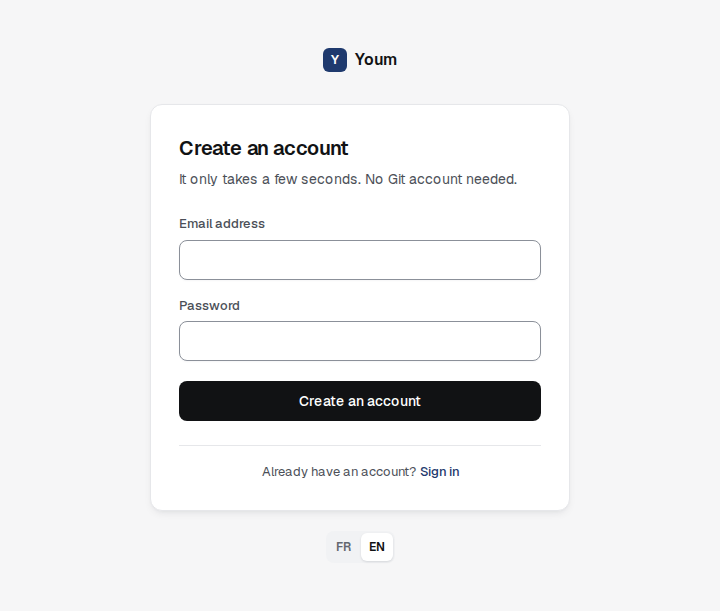
Create an account
- On the sign-in screen, choose Create an account, below the form.
- Enter your email address and a password of at least 6 characters.
- Confirm with the Create an account button.
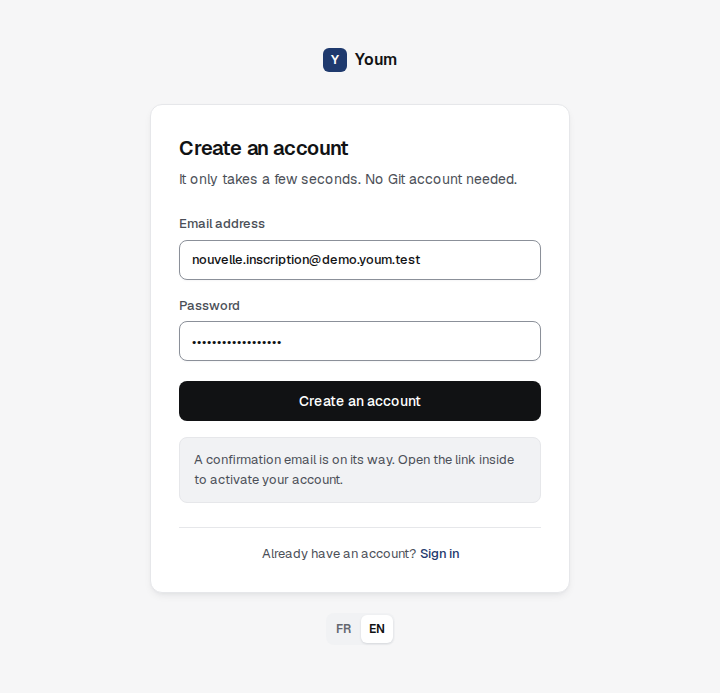
Youm then sends you a confirmation email. Open the link inside to activate your account: until the address is confirmed, sign-in is refused.
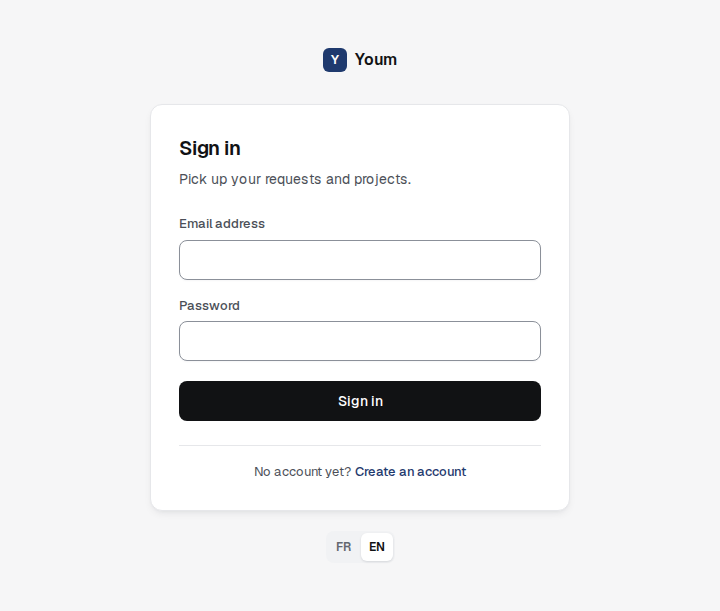
Sign in
On the Sign in screen, enter your address and password, then choose Sign in.
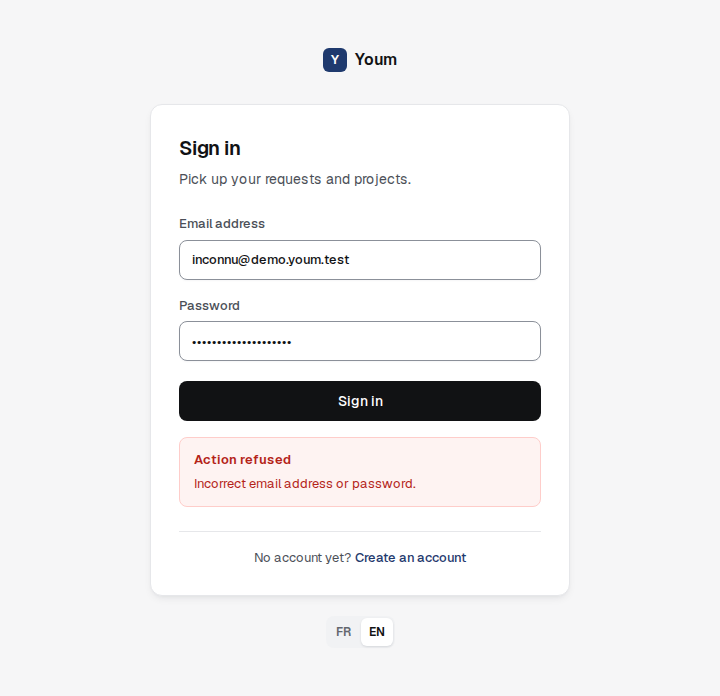
If sign-in is refused
Youm shows the reason in an “Action refused” notice below the form, for example “Incorrect email address or password.”. Check the address you entered, then your password. If you have just signed up, first confirm your address with the link sent by email.
Change language
The FR / EN switch moves the whole interface between French and English. It sits below the card on the sign-in, sign-up and organisation creation screens, then in the top bar once you are in Youm. Youm remembers your choice on this device.