Invite people
Bring colleagues and outside people into the organisation.
The owner and administrators of an organisation invite people to it by email. Members and guests do not see this feature.
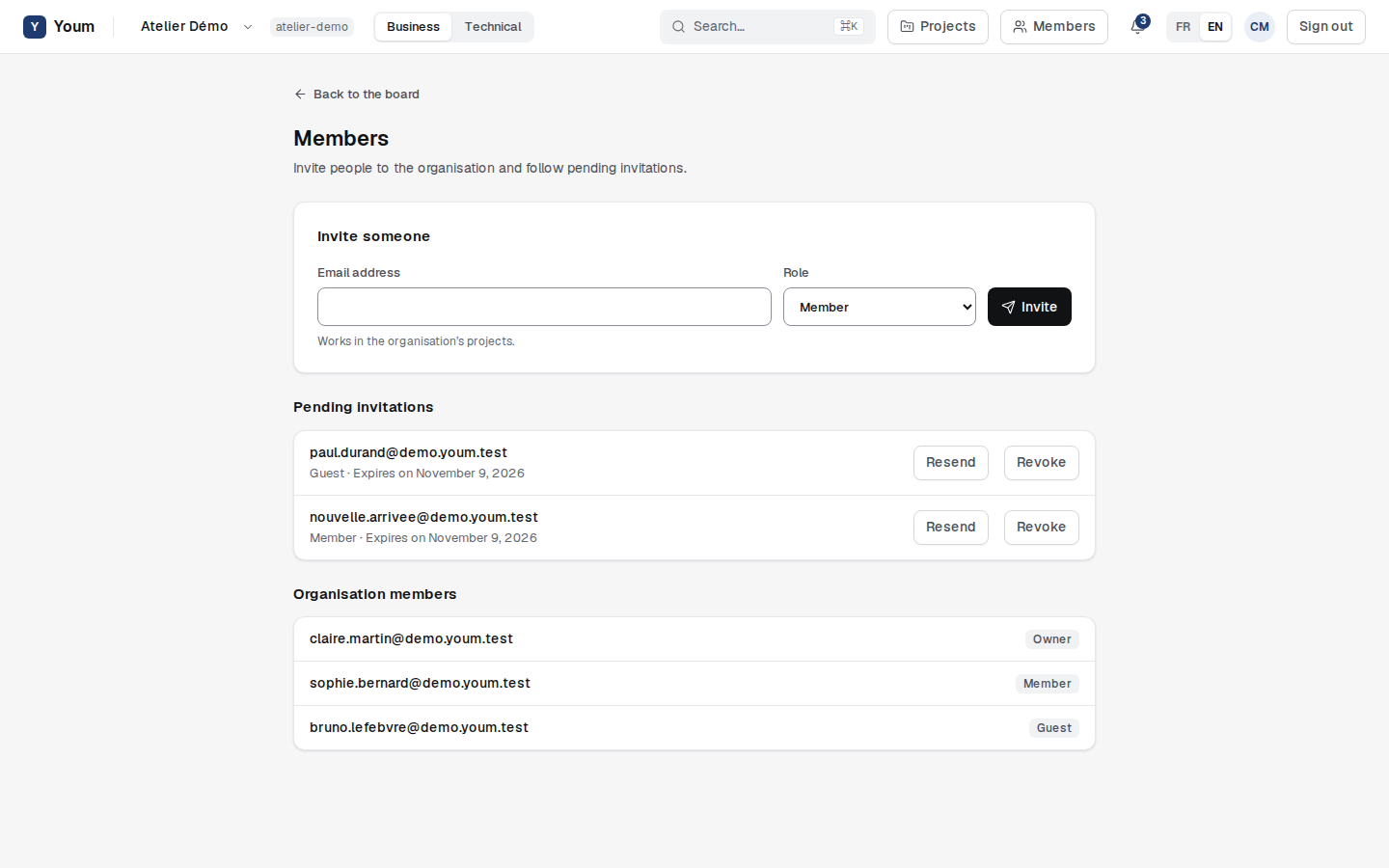
Invite someone
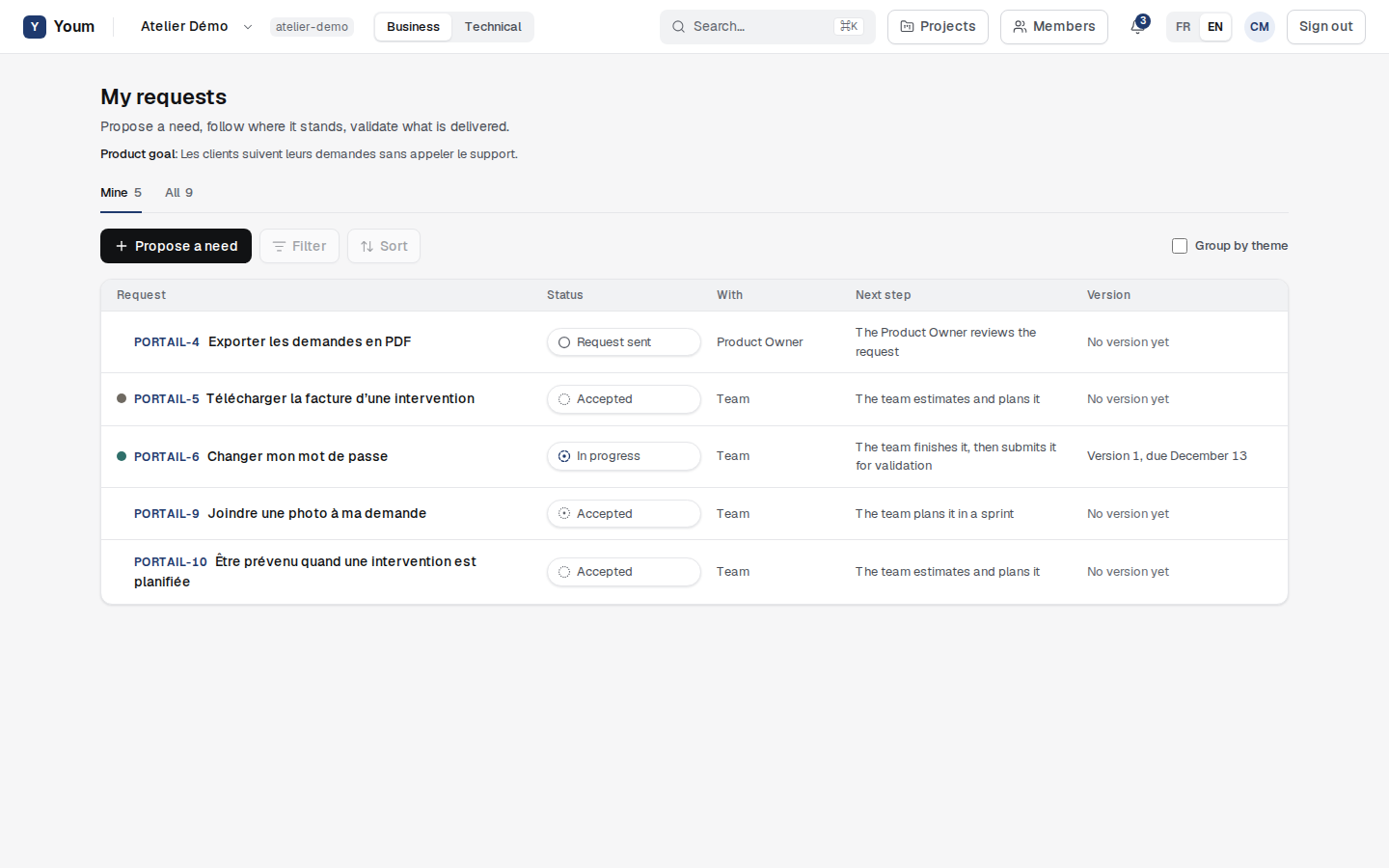
- In the top bar, choose Members.
- Enter the person’s email address and choose their Role.
- Choose Invite.
The person receives an email with a link valid for 7 days. The possible roles:
| Role | What the person can do |
|---|---|
| Administrator | Invites people and manages members. |
| Member | Works in the organisation’s projects. |
| Guest | Outside person, such as a client: they will only see the projects shared with them. |
Nobody becomes owner through an invitation.
Follow pending invitations
Below the form, each pending invitation shows its role and expiry date. An expired invitation is flagged in red: resend it.
- Resend sends a new link, valid for 7 days again. The old link no longer works.
- Revoke cancels the invitation: its link is refused.
Youm refuses a second invitation for an address that already has one pending: resend the first one instead.
Accept an invitation
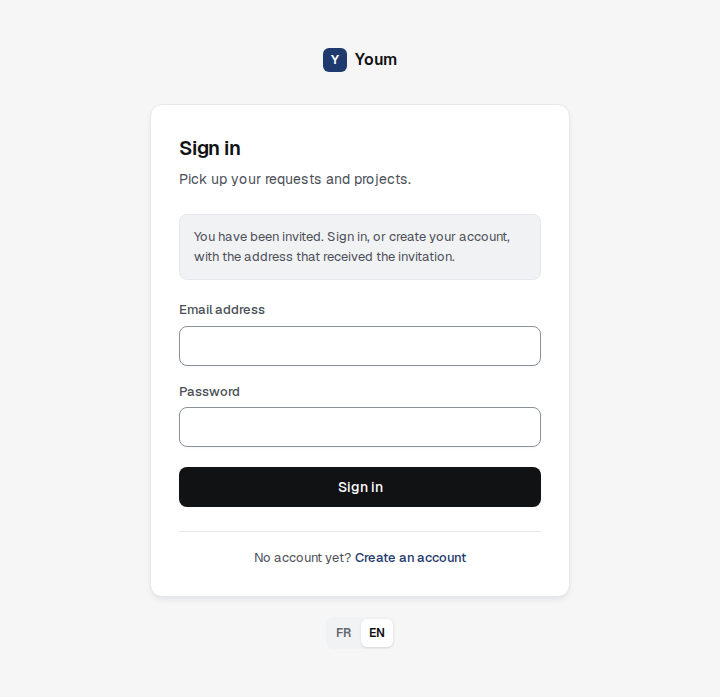
When opening the link, the invited person signs in, or creates their account, with the address that received the invitation. If they create their account, the link in the confirmation email brings them back to their invitation, whichever browser they open it in.
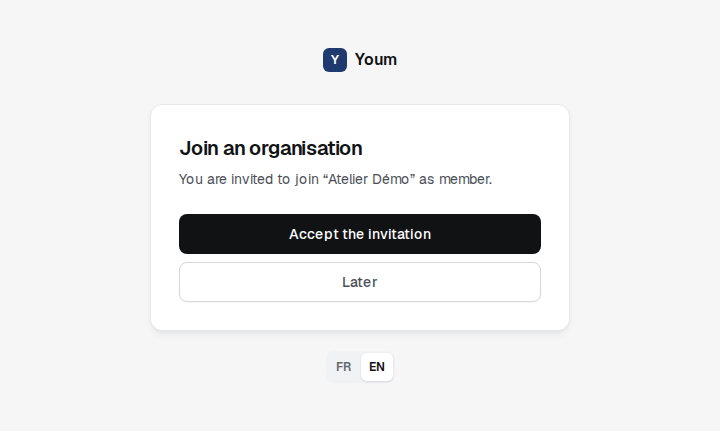
Once signed in, they see the proposed organisation and role, choose Accept the invitation and land in the organisation. An expired, revoked or already used link is refused with the reason.
Belong to several organisations
The same person can belong to several organisations. Their names then appear in a menu at the top left, which switches from one to another without signing in again. Each organisation’s data stays separate.