Propose and follow a request
Express a need or report a defect, then follow where the request stands.
Anyone who can see a project can propose a request in it, a guest stakeholder included. No knowledge of Scrum is needed.
Propose a request
- On My requests, choose Propose a need.
- Under What, say in a few words what you want to get (100 characters at most, without reusing the title of another request in the project).
- Under Why, describe the problem it solves, and for whom.
- Choose the Request type: New need, or Defect if something does not work as expected.
- Choose Send the request.
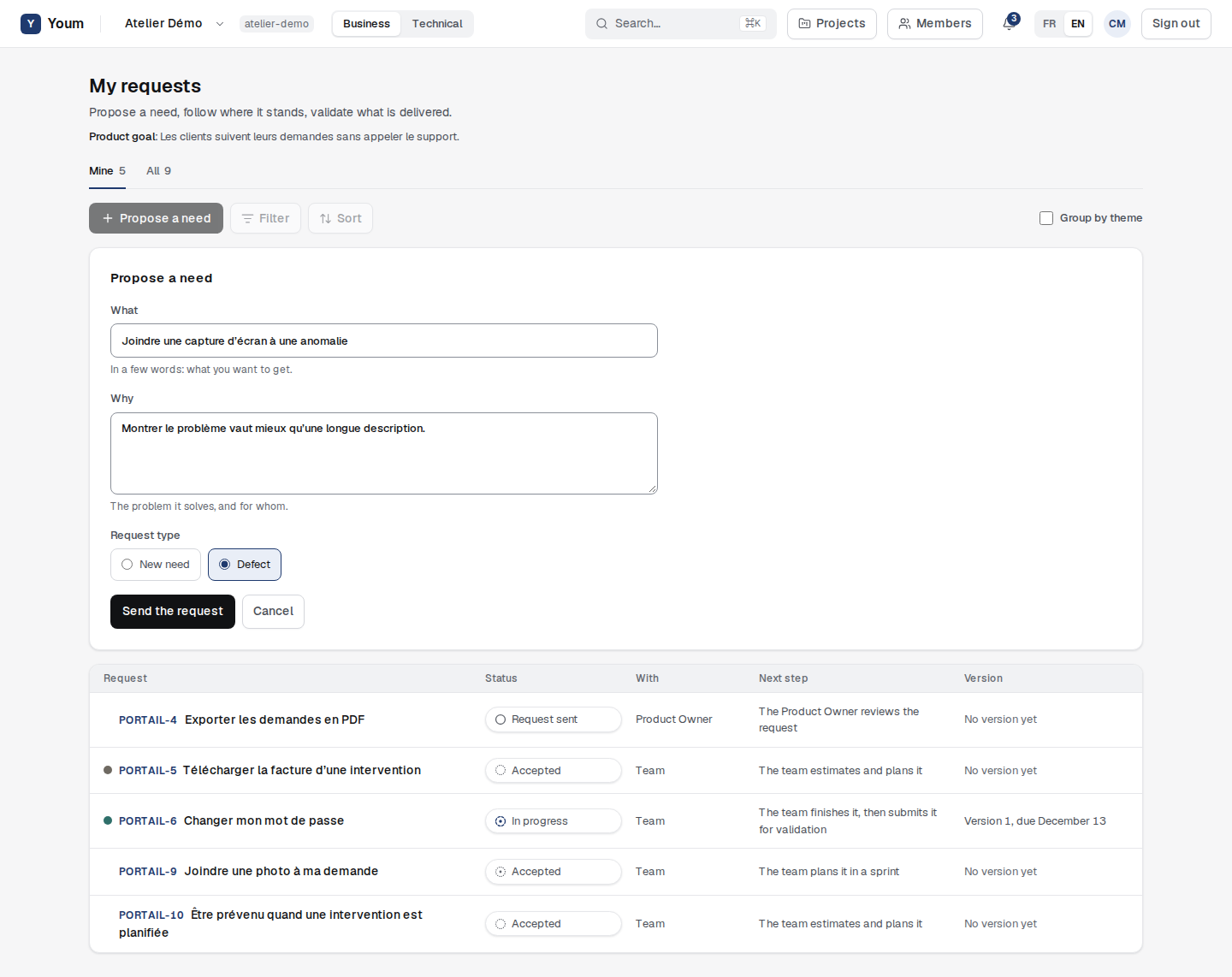
The request gets a readable identifier, made of the project key and a number, for example PORTAIL-4. It is then “Request sent” and waits for the Product Owner.
Follow your requests
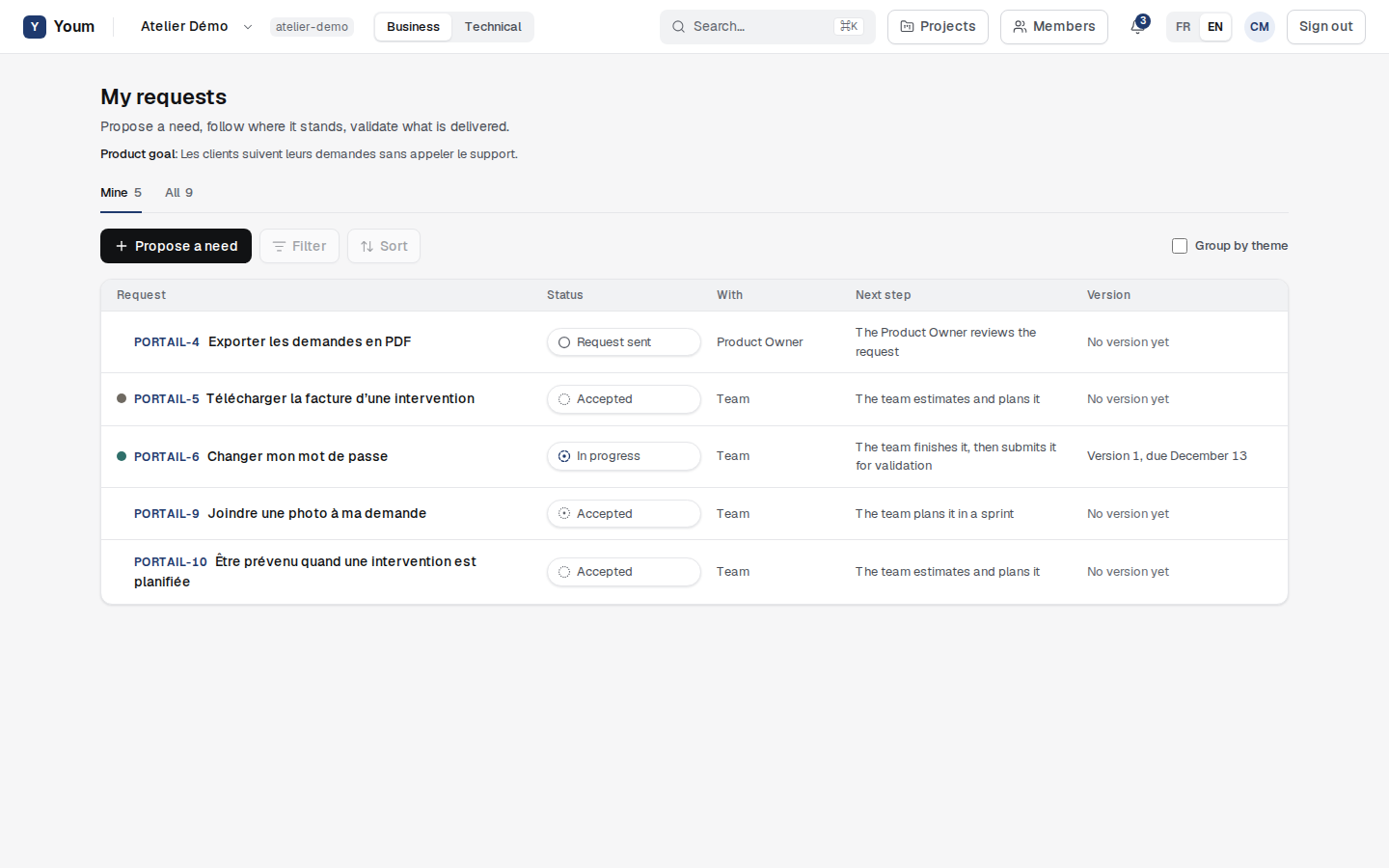
The My requests board opens on the Mine tab: your own requests. The All tab shows those of the whole project. For each request, the board shows:
- its Status, in business words;
- who it is With: the Product Owner, the team or the author;
- the Next step.
If there are several projects, choose one in the Project list at the top right of the board.
Edit, delete, understand a decline
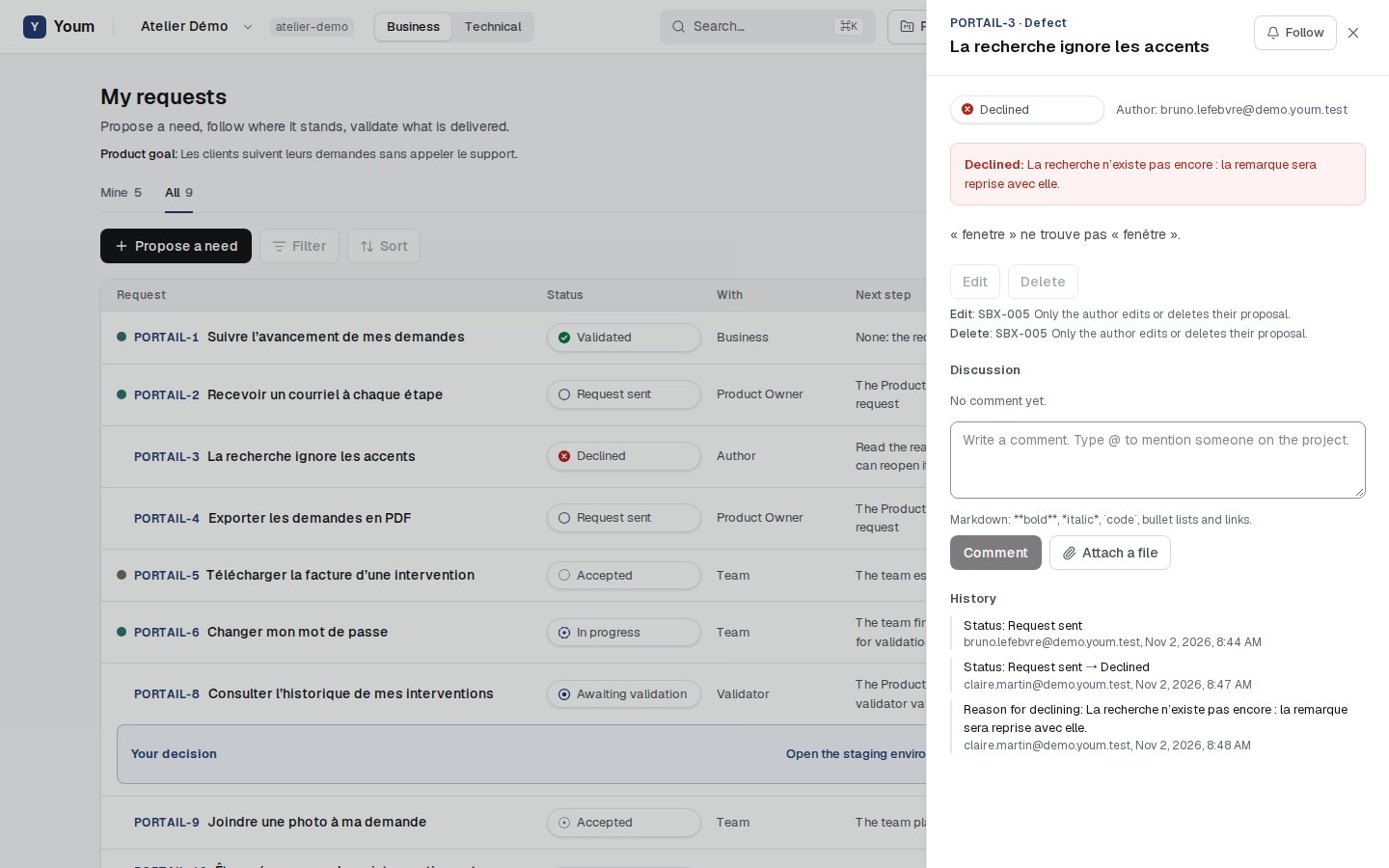
Choose a request to open its details. Until it is accepted, its author can Edit or Delete it.
When the Product Owner declines a request, they always give the reason, shown in red on the request. A declined request is kept: its author can edit it, but no longer delete it, and only the Product Owner can reopen it to put it back on hold.
A greyed-out button is an action you cannot take: the reason is written just below, with the rule code. The History keeps every change: the field, the old and new value, the person and the date.